
How to Play GTA 5 in Mobile: A Complete Step-by-Step Guide
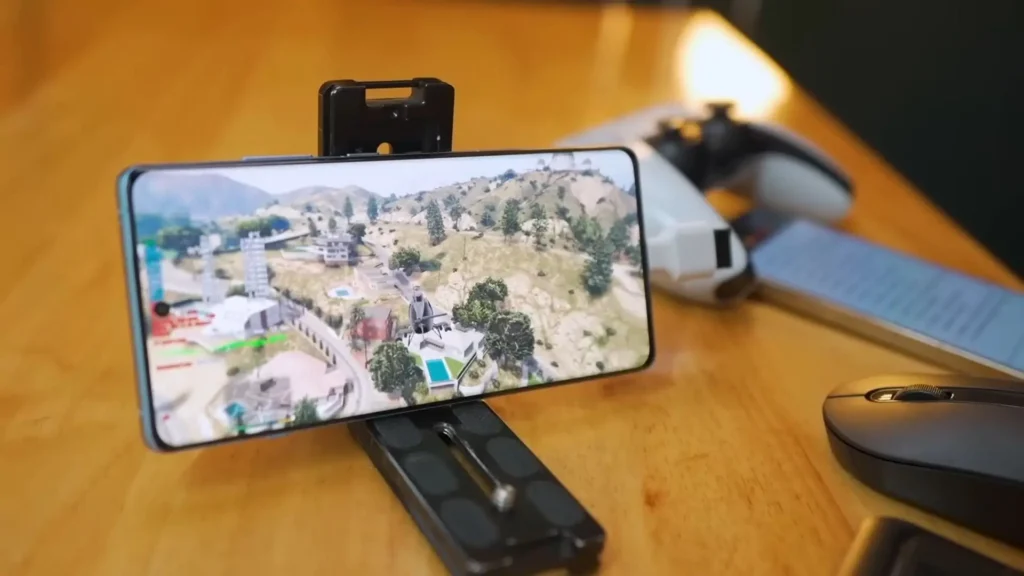
Introduction: Why Everyone Wants to Play GTA 5 on Mobile
Since its release, GTA 5 (Grand Theft Auto V) has become one of the most popular open-world games globally. With its thrilling storyline, expansive map, and endless gameplay possibilities, it’s no wonder that millions of players want to take the action with them on the go. But a common question many gamers ask is: how to play GTA 5 in mobile?
In this article, we’ll guide you through all the possible ways to enjoy GTA 5 on your smartphone, whether you have an Android or iOS device. From cloud gaming to remote play, we’ll cover every working method so you can experience Los Santos right from your mobile screen.
Can You Download GTA 5 Directly on Mobile?
The straight answer is no, GTA 5 is not officially available on the Google Play Store or Apple App Store. Rockstar Games has not released a mobile version of GTA 5 due to the high graphics and performance demands of the game. However, that doesn’t mean you can’t play it on your mobile device. There are several legal and safe methods that allow you to stream or mirror the game onto your smartphone.
Let’s explore how to play GTA 5 in mobile using these options.
Method 1: Using Cloud Gaming Services
Cloud gaming is the most effective way to play high-end games like GTA 5 on mobile without downloading the full game. It allows you to stream the game from powerful servers to your phone, just like watching a video.
How It Works:
You use a cloud gaming app, log in, and launch GTA 5 from their servers. Your mobile acts like a screen and controller, while the game actually runs elsewhere.
Steps to Use Cloud Gaming:
-
Download a cloud gaming app such as NVIDIA GeForce NOW, Xbox Cloud Gaming, or similar (depending on availability in your region).
-
Create an account and log in.
-
Link your Steam or Epic Games account (if you already own GTA 5).
-
Search for GTA 5 in the app and launch the game.
-
Use on-screen controls or connect a Bluetooth game controller.
Pros:
-
No need for high-end hardware on your phone
-
Fast access with no need for long downloads
-
Smooth graphics if you have strong internet
Cons:
-
Requires high-speed internet (preferably Wi-Fi or 5G)
-
May have some input lag depending on network quality
Method 2: Steam Link (Play GTA 5 from Your PC to Mobile)
If you already own GTA 5 on Steam and have a gaming PC, you can use Steam Link to stream the game to your mobile device over a local Wi-Fi connection.
Steps to Use Steam Link:
-
Install Steam on your PC and make sure GTA 5 is installed.
-
Download the Steam Link app on your mobile from the Play Store or App Store.
-
Connect both your PC and mobile to the same Wi-Fi network.
-
Pair your phone with your PC using the Steam Link app.
-
Launch GTA 5 through the Steam interface.
This method is ideal for those who want to play GTA 5 in another room or relax on the couch with just their phone in hand.
Pros:
-
Great graphics quality and full control
-
No need to purchase the game again
-
No cloud subscription needed
Cons:
-
Requires both PC and mobile on the same network
-
PC must remain turned on while playing
Method 3: Using Remote Play via PlayStation or Xbox
If you own GTA 5 on a console, you can stream it to your mobile device using Remote Play.
For PlayStation Users:
-
Install the PS Remote Play app on your phone.
-
Sign in with your PlayStation account.
-
Make sure your PS4/PS5 is in Rest Mode with remote access enabled.
-
Connect your controller to the phone (optional but recommended).
-
Launch GTA 5 and start playing remotely.
For Xbox Users:
-
Use the Xbox app or Xbox Cloud Gaming (Game Pass Ultimate).
-
Sign in and access your game library.
-
Select GTA 5 and stream it to your phone.
Pros:
-
Play your console games from anywhere
-
Works smoothly with good internet
Cons:
-
Console must support remote play
-
Controller usually needed for best experience
Tips for the Best GTA 5 Mobile Experience
Now that you know how to play GTA 5 in mobile, here are some tips to improve your gameplay experience:
-
Use a Bluetooth controller: On-screen controls work, but using a physical controller gives better precision and comfort.
-
Stay on a stable connection: Use a 5GHz Wi-Fi network or 4G/5G for minimal lag and smoother gameplay.
-
Close background apps: Free up memory and processing power on your phone for better performance.
-
Adjust game settings: Some cloud gaming services let you lower the resolution or frame rate to reduce lag.
Is It Legal to Play GTA 5 on Mobile?
Yes, using official methods like Steam Link, cloud gaming apps, or remote play is completely legal. You must own the original copy of GTA 5 and use licensed platforms. Avoid downloading fake APKs or modded versions of GTA 5 for mobile—they often contain malware and violate copyright laws.
Final Thoughts
To wrap up this guide on how to play GTA 5 in mobile, the good news is that you can enjoy the full GTA 5 experience on your smartphone with the right tools and setup. Whether you use cloud gaming, remote play, or Steam Link, the key is to have a stable internet connection and access to the game on a trusted platform.
While we may not have an official GTA 5 mobile version yet, technology has made it easier than ever to carry Los Santos in your pocket. So grab your phone, set up your streaming method of choice, and get ready to cause some mayhem on the streets—anytime, anywhere.